
Manage Webflow with AI: what the Webflow MCP and Claude can do
This guide is a practical map of what that actually lets you do, written by a team that runs it every day. We manage Codelevate's own site and client sites through the Webflow MCP, and this very article was drafted through it. So rather than a feature list copied off a docs page, what follows is the real picture: the two families of tools and why the difference matters, the things Claude genuinely does well, the honest limits that will trip you up, and how to keep AI safe on a live site.
It is written for founders, marketing leaders, and CTOs deciding whether to put AI to work on their website, and for the Webflow teams who will actually operate it.
Key takeaways
The short version, before we earn it:
• The Webflow MCP connector (launched February 2026) lets Claude read and write your Webflow project directly, inside your permissions and with a human approving what publishes.
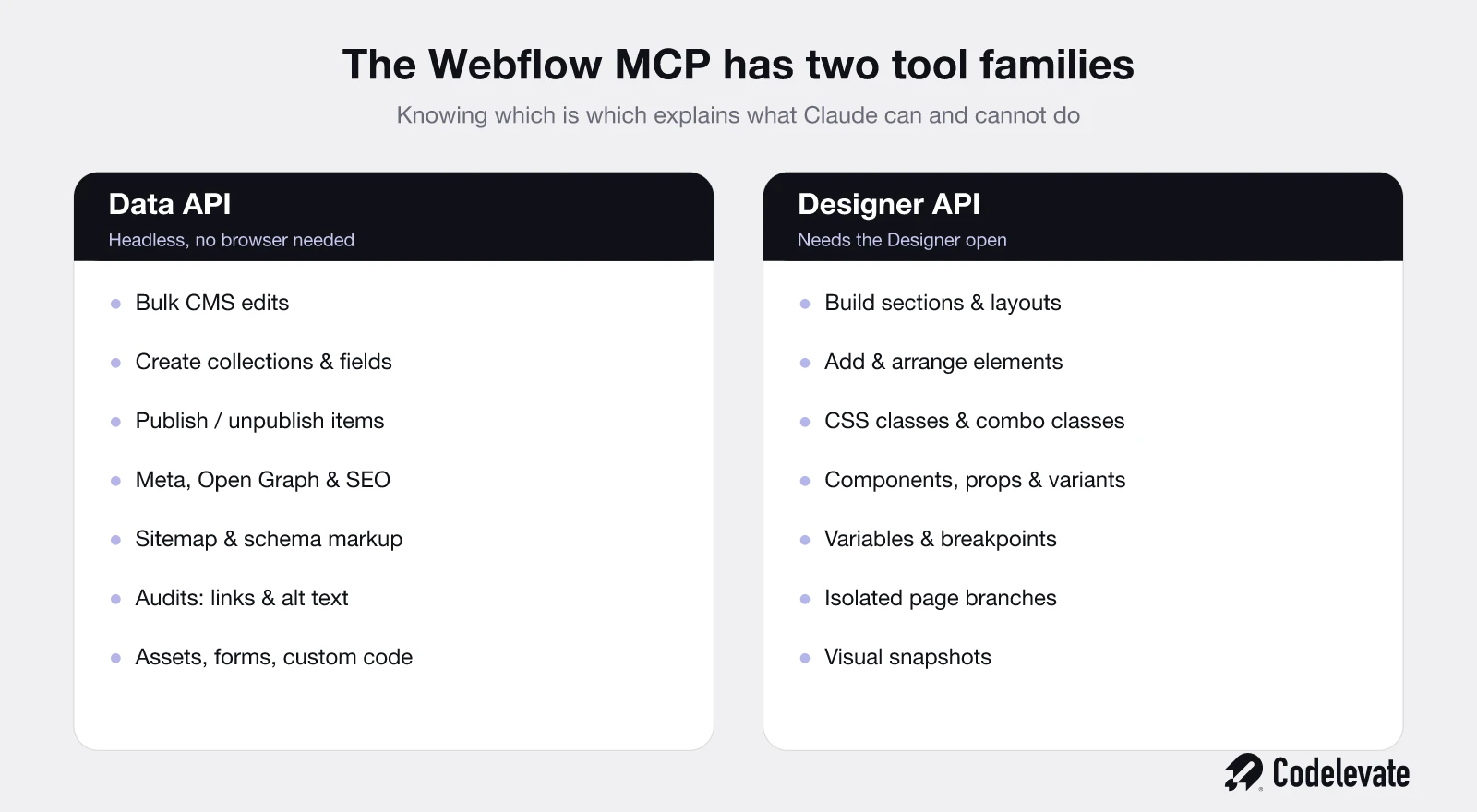
• It exposes two tool families: the Data API, which works headlessly, and the Designer API, which needs the Webflow Designer open. Knowing which is which saves you a lot of confusion.
• The best everyday wins are content operations: bulk CMS edits, creating collections and fields, and fixing metadata across hundreds of pages in minutes.
• It also builds in the Designer, runs SEO and AEO audits, checks for broken links and missing alt text, and manages assets, forms, and custom code.
• It has real limits: it cannot build Webflow Interactions, cannot create brand-new localized CMS items, and Designer tools only work while the Designer is open.
• Governance is the point, not an afterthought: branching, publishing gates, and roles mean AI never changes your live site without a person signing off.
• The tool is only as good as the setup and judgment behind it. A clear brief and a real design system are what separate useful output from confident nonsense.
What is the Webflow MCP connector?
The Webflow MCP connector is a first-party integration that connects an AI client like Claude directly to your Webflow project through the Model Context Protocol, the open standard Anthropic introduced for letting models talk to tools. Webflow and Anthropic launched it as a native connector on February 9, 2026, and it now works with Claude Desktop, Claude Code, Cursor, ChatGPT, and Codex.
In plain terms, it gives Claude a sanctioned door into the same Webflow project your team logs into. Within the permissions you grant, Claude can read and change your CMS, your pages, your styles, and your metadata, using Webflow's own API rather than scraping your published site or guessing at your HTML. It is the difference between an AI that can talk about your website and one that can actually operate it.
Setup is quick, usually a couple of minutes from the AI client, and we cover it below. The important part is not the connection, it is understanding what sits on the other side of it, because the connector is really two different toolsets wearing one name.
The two tool families: Data API and Designer API
This is the single most useful thing to understand before you start, and almost no guide explains it clearly. The Webflow MCP exposes two separate families of tools, and they behave very differently.
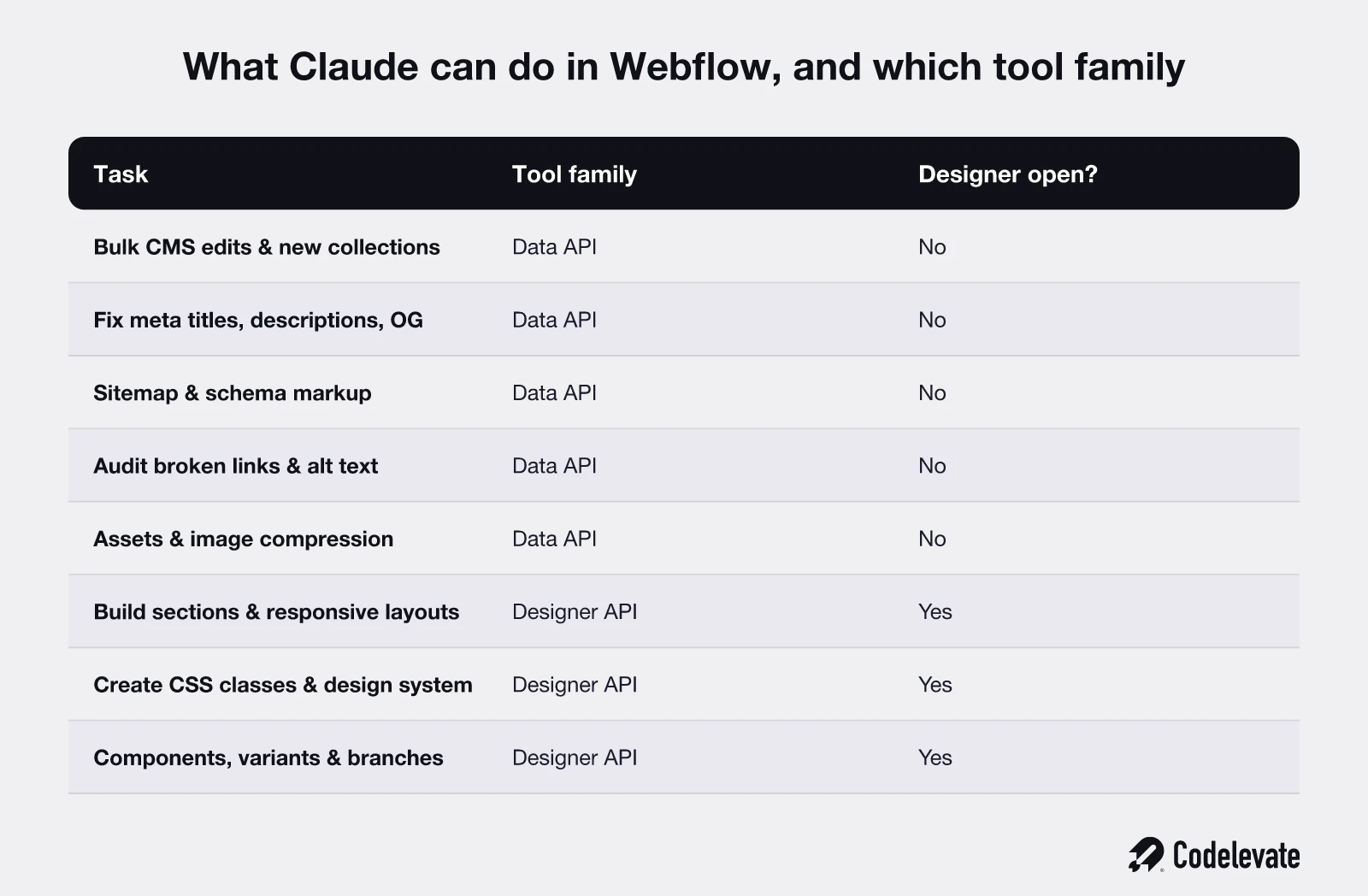
The Data API family is the headless one. It talks to Webflow's servers directly and does not need anything open in your browser. This is where the CMS lives: creating collections and fields, bulk-editing items, publishing and unpublishing, updating page metadata, managing assets, reading forms, and running site audits. If you are automating content operations, this is the family you spend most of your time in, and it will happily run in the background.
The Designer API family is the visual one. It manipulates the canvas itself: building sections and layouts, adding and arranging elements, creating and editing CSS classes, managing components, variables, and breakpoints, and taking visual snapshots. The catch is that these tools only work while the Webflow Designer is actually open in your browser, because they operate through a bridge app running inside the Designer. Close the tab, and the Designer tools go quiet while the Data tools keep working.
We learned this distinction the hard way, and it is worth stating plainly: if your AI client seems connected but suddenly cannot touch the CMS, or can only do design tasks, you are almost certainly looking at a session that has the Designer family loaded but not the Data family, or the reverse. Knowing the two families exist turns a baffling problem into a five-second diagnosis.
Manage your CMS at scale
This is the capability that pays for itself, and it is where most teams should start. Because Claude can read and write the CMS directly through the Data API, work that used to be a slow, manual grind becomes a short conversation.
The everyday wins look like this. You can bulk-update fields across an entire collection, standardising formats or fixing a mistake that got copied into two hundred items, in one pass instead of two hundred clicks. You can spin up a whole new collection with its fields defined, ready for a content team to fill, in the time it takes to describe it. You can restructure how content is organised, publish or unpublish items in bulk, and prepare large content changes that would otherwise be a multi-day project for one person.
The transformation here is not subtle. A marketer who used to dread a site-wide content change now asks for it in a sentence and reviews the result. That is the difference between a CMS your team endures and one it actually commands.
Fix SEO and AEO across the whole site
Metadata is the classic example of work that is simple in principle and miserable at scale, which makes it perfect for this connector. Claude can audit and edit meta titles, descriptions, and Open Graph tags across every page, so the tedious job of finding and fixing the twelve pages with a missing description becomes automatic rather than a manual crawl.
It goes further than classic SEO. Claude can manage schema markup and structured data, control which pages and items appear in your sitemap, and, paired with Webflow's answer-engine tooling, help you see and improve how AI answer engines read your site. As search splits between traditional blue links and AI-generated answers, being able to fix metadata and structure at scale, on demand, is a real advantage over doing it page by page.
The honest caveat, which we repeat often, is that this fixes the technical floor, not the content. Perfect metadata on a thin page still loses to a great page. Use the connector to remove the technical excuses, then let the writing win the ranking.
Build and design in the Designer
Through the Designer API family, Claude can do real construction work on the canvas, not just content edits. It can build sections, containers, and grids that adapt across breakpoints, add and arrange elements, and edit their text, tags, and settings. On the styling side it can create and reuse CSS classes and combo classes, build styles from raw CSS, and manage a design system's variables, colours, typography, and spacing.
Components and structure are covered too. Claude can create and manage components with their props, variants, and slots, work on isolated page branches so nothing touches the live site while it experiments, and update page settings in bulk. For a team with a real design system in place, this means a new section or a component variant can be built to your existing standards through a description, rather than from scratch by hand.
Remember the constraint from earlier: all of this runs through the Designer, so the Designer has to be open and active in your browser for these tools to work. It is the trade for letting AI touch your visual design safely rather than blindly.
Audit the site and catch problems early
Some of the quietest value is in site intelligence, the housekeeping no one enjoys and everyone postpones. Claude can scan for broken links, missing alt text, and outdated information, and surface exactly what needs attention before it becomes a visible problem or an accessibility gap.
It can also work with Webflow's collaboration layer, reading and adding comments, listing comment threads and replies, and looking up workspace users, so feedback and fixes stay inside the platform. And on sites with the analytics add-on, it can read sessions, users, and pageviews, rank pages by traffic, and break performance down by country, browser, or source, turning raw numbers into a plain-language answer about what is working.
The pattern across all of this is the same: Claude does the tireless scanning and the first pass, and your team spends its attention on the decisions, not the digging.
Assets, forms, and custom code
Beyond content and design, the connector handles the surrounding plumbing. On assets, Claude can list, organise, update, and delete files and folders, and run compression jobs to shrink file sizes, which is a direct and easy performance win. On forms, it can read forms and their schemas and list, update, or delete submissions, useful for cleaning up or exporting lead data.
It can also read and write site-level and page-level custom code and manage registered scripts, and upload and manage custom font files. None of these are headline features, but together they mean fewer small jobs bouncing between a marketer and a developer, because the AI can handle the mechanical part inside the platform.
If you are setting this up on a real site, our free 70-point Webflow launch checklist is the exact pre-launch process we run before any client site goes live, covering the SEO, performance, and hosting basics that AI can help you fix but should not be trusted to judge for you.
Real prompts we actually use
The capability list is abstract until you see it as instructions. Here are the kinds of prompts we run against real sites, to make it concrete:
• "Find every blog post missing a meta description and draft one for each, then show me the list before publishing."
• "Create a Case Studies collection with fields for client, industry, summary, results, and a hero image."
• "Audit the whole site for broken links and images missing alt text, grouped by page."
• "Reformat every product item so the price sits in its own field instead of the description."
• "Build a three-column feature section on a new branch using our existing card component and styles."
• "Compress every image in the assets panel over 300 KB and report what changed."
Notice the shape of them. Each is specific, each ends in a review step, and each assumes the site already has a structure and a design system worth following. That is not incidental, it is the whole game, as the next sections explain.
How to connect Claude to Webflow
The mechanics are genuinely quick. At a high level the setup looks like this:
• Add the Webflow connector in your AI client (Claude Desktop, Claude Code, Cursor, ChatGPT, or Codex).
• Authorise it against your Webflow workspace and grant the permissions it needs, including CMS read and write if you want it to manage content.
• For Designer tasks, open the Webflow Designer for the site and keep that tab active, so the Designer bridge is running.
• Give Claude context: your components, your brand, your content model, and your rules, so it works to your standard rather than a generic one.
• Work on a branch, and keep publishing behind a human approval.
One practical note from experience: a single authentication token maps to a single workspace, and reconnecting can sometimes bring the connector back with only part of its toolset loaded. If the CMS tools suddenly seem missing, reconnect cleanly rather than assuming the feature is gone. The connection is the easy part, the context and the guardrails are the work that makes it pay off.
The limits and gotchas nobody documents
This is the section the marketing-style guides skip, and it is the most useful part if you are about to rely on this in production. The connector is powerful, and it has firm edges you should know before you commit.
• It cannot build or edit Webflow Interactions (IX3). Animations and complex interactions still have to be done by hand in the Designer.
• It cannot create brand-new localized CMS items. It can read and work with existing localized items, but new localized content is not something it can spin up, which matters if you run a multi-language site.
• Designer tools need the Designer open. If the tab is closed or idle, anything that touches the canvas stops working while the headless Data tools keep going.
• It manages uploaded font files only, not Google or Adobe Fonts, and it cannot change workspace access or user permissions.
• One token, one workspace. There is no multi-workspace magic on a single connection.
None of these make the connector less worth using. They just define its lane. Knowing them up front is how you avoid asking the AI for something it structurally cannot do and losing an afternoon to the confusion, which, we can confirm, is a very real way to lose an afternoon.
Keeping AI safe on a live site
For any serious company, "we let AI edit the website" is only a reasonable sentence when there are guardrails underneath it, and this is where the setup earns its keep. Webflow's model is built for exactly this, and it comes down to three controls.
• Branching. Claude can work on an isolated branch in the Designer, so experiments never touch the live site until they are reviewed.
• Publishing gates. Nothing goes live without a human approving the publish. The AI proposes, a person disposes.
• Permissions. You control exactly what the connector is allowed to read and write, scoped to a single workspace.
Put together, the result is a firm rule you can give a nervous stakeholder: AI never changes what your visitors see without a person signing off. That is what makes this usable in an enterprise rather than a science experiment, and it is the difference between moving fast and moving recklessly.
How we use it at Codelevate
Because we run this daily, it is only fair to show the real workflow rather than a tidy diagram. The connector does the mechanical load: the CMS operations, the metadata fixes, the audits, the first draft of a new section, all inside Webflow and, where it touches design, on a branch. Our people keep the two things that must never be handed to a model, the judgment and the publish. Strategy and creative direction stay human, and a person always clicks the final publish.
The reason we can move quickly without shipping generic filler is the setup, not the prompt. We give the AI a real design system, a defined content model, and clear rules for each site, which is exactly the scaffolding that turns a powerful tool into a reliable one. As an AI-assisted Webflow team, that setup and judgment is most of the value we bring. The connector is available to everyone, but knowing what to build, what to skip, and how to keep it safe is the part you cannot get from a prompt box.
If you want the deeper comparison of where this fits against building your site a different way, our guide to Webflow vs Claude covers when to use Claude inside Webflow versus a raw AI-coded stack.
A last reminder that outlasts any tool: a site you can now manage with AI still has to convert. The short breakdown below covers the mistakes that quietly kill conversion on otherwise excellent sites, and it is worth ten minutes before you point AI at your pages.

The bottom line
Managing Webflow with AI is real in 2026, not a demo. Through the MCP connector, Claude can run your CMS at scale, fix SEO and AEO across the whole site, build in the Designer, and catch the problems your team keeps postponing, all inside your permissions and behind a human publish. The two tool families, headless Data and Designer-bound design, explain most of what it can and cannot do, and the honest limits are worth learning before you lean on it. Used with a real setup and human judgment, it turns a website from something your team maintains into something it commands. That is the shift worth making, and it is the one we help clients make every week.
Free download: our 70-point Webflow launch checklist is the exact pre-launch process we run before any site goes live. And if you want the Claude and Webflow setup done properly on your own site, without the guesswork we spent our own time learning, you can book a free call with our team and we will show you what good actually looks like.



.svg)
.svg)


