
Webflow bandwidth explained (2026): limits, what counts, and how to stay under
Webflow bandwidth is the total amount of data your site sends to everyone who loads it in a month, and it is the number most likely to surprise you on your bill. Every page view pulls your HTML, images, fonts, video, and scripts across Webflow's network, and the sum of all that traffic is what counts against your plan. Go over the limit and Webflow charges you for more, so understanding bandwidth is really about controlling cost and avoiding a nasty upgrade.
The good news is that bandwidth follows one simple formula, and once you can see it, you can predict and control it. This guide explains what Webflow bandwidth actually is, how it is calculated, the current plan limits after Webflow's May 2026 pricing change, what quietly eats it, what happens when you go over, and the concrete ways to bring it down. It also covers the harder question most articles skip: when a rising bandwidth bill is a signal you have outgrown Webflow hosting altogether.
It is written for founders, marketers, and product owners running a Webflow site who want a plain answer, not a pricing table they have to decode.
Key takeaways
The short version, before the detail:
• Webflow bandwidth is all the data your site transfers to visitors in a month: pages, images, video, fonts, scripts, and file downloads.
• The formula is simple: average page weight times monthly views. A 1 MB page with 100,000 views uses roughly 100 GB.
• Every request counts, not just real people. Search crawlers, AI bots, and even 404 errors all draw from your quota.
• After the May 2026 pricing change, Webflow merged the CMS and Business plans into one Premium plan, so the old bandwidth tiers no longer apply.
• Go over your limit and surge protection forgives the first month, but a second month over triggers a paid bandwidth add-on or a forced upgrade.
• Images and video are the biggest drains. Compressing images and moving video off Webflow can cut bandwidth by half.
• If your bandwidth keeps climbing and the add-ons keep growing, that is often the moment a custom hosting setup becomes cheaper and more controllable.
What is Webflow bandwidth?
Webflow bandwidth is the total data transferred from Webflow's hosting network to every browser and bot that requests your site over a billing month. When someone opens your page, their browser downloads the HTML, the CSS and JavaScript, every image and font, any embedded or background video, and any file they download. Add all of that up across every visit in a month, and that total is your bandwidth usage.
The key word is transferred. Bandwidth is not how big your site is or how many pages it has, it is how much data actually moves to visitors. A small site with a few very heavy pages and lots of traffic can use far more bandwidth than a large site that is light and rarely visited. This is why two sites on the same plan can have completely different bills.
One point that catches people out: bandwidth counts all traffic, not just customers. Google's crawler, AI scrapers indexing your content, uptime monitors, and even failed requests that return a 404 all pull data and all count. On a site getting hammered by aggressive bots, that can be a large and invisible share of the total.
How Webflow bandwidth is calculated
Bandwidth comes down to one formula worth memorising: average page weight multiplied by monthly page views equals bandwidth used. If your pages average 1 MB and you get 100,000 views in a month, you are using roughly 100 GB. Halve the page weight or halve the traffic, and you halve the bandwidth.
That formula is powerful because it turns a mysterious bill into something you can estimate in advance. Open your site, check the total page weight in your browser's developer tools or a tool like PageSpeed Insights, and multiply by the traffic you expect. If a landing page weighs 4 MB because of a background video and a few uncompressed hero images, 50,000 visits alone is 200 GB, and you have a problem before you have even counted the rest of the site.
The practical lesson is that the two levers are page weight and traffic. You usually cannot, and would not want to, reduce traffic. So bandwidth control is almost entirely about reducing page weight, which is the same work that makes your site faster. Lighter pages cost less bandwidth and rank and convert better, so the effort pays twice.
How to check your current bandwidth usage
Before you optimise anything, find out where you actually stand, because guessing leads to solving the wrong problem. Webflow shows your usage inside the site's settings under the billing and usage area, where you can see how much of your monthly allowance you have used and how close you are to the limit. Check it a few days before your billing date, when the month's total is nearly complete, so the figure is realistic.
If your usage is spiking without a matching jump in real visitors, that is the classic fingerprint of bot traffic rather than a content problem, and it points you straight at filtering rather than image compression. Webflow's own 2026 pricing and plans update is worth reading alongside the dashboard, so you know which allowance your plan now carries after the changes. Diagnose first, then fix the thing that is actually driving the number.
Webflow bandwidth limits by plan in 2026
Each Webflow site plan includes a monthly bandwidth allowance, and in May 2026 Webflow simplified the lineup, folding the old CMS and Business plans into a single Premium plan. That change matters because a lot of advice online still quotes the old tiers, so check the numbers against Webflow's current pricing rather than an older article.
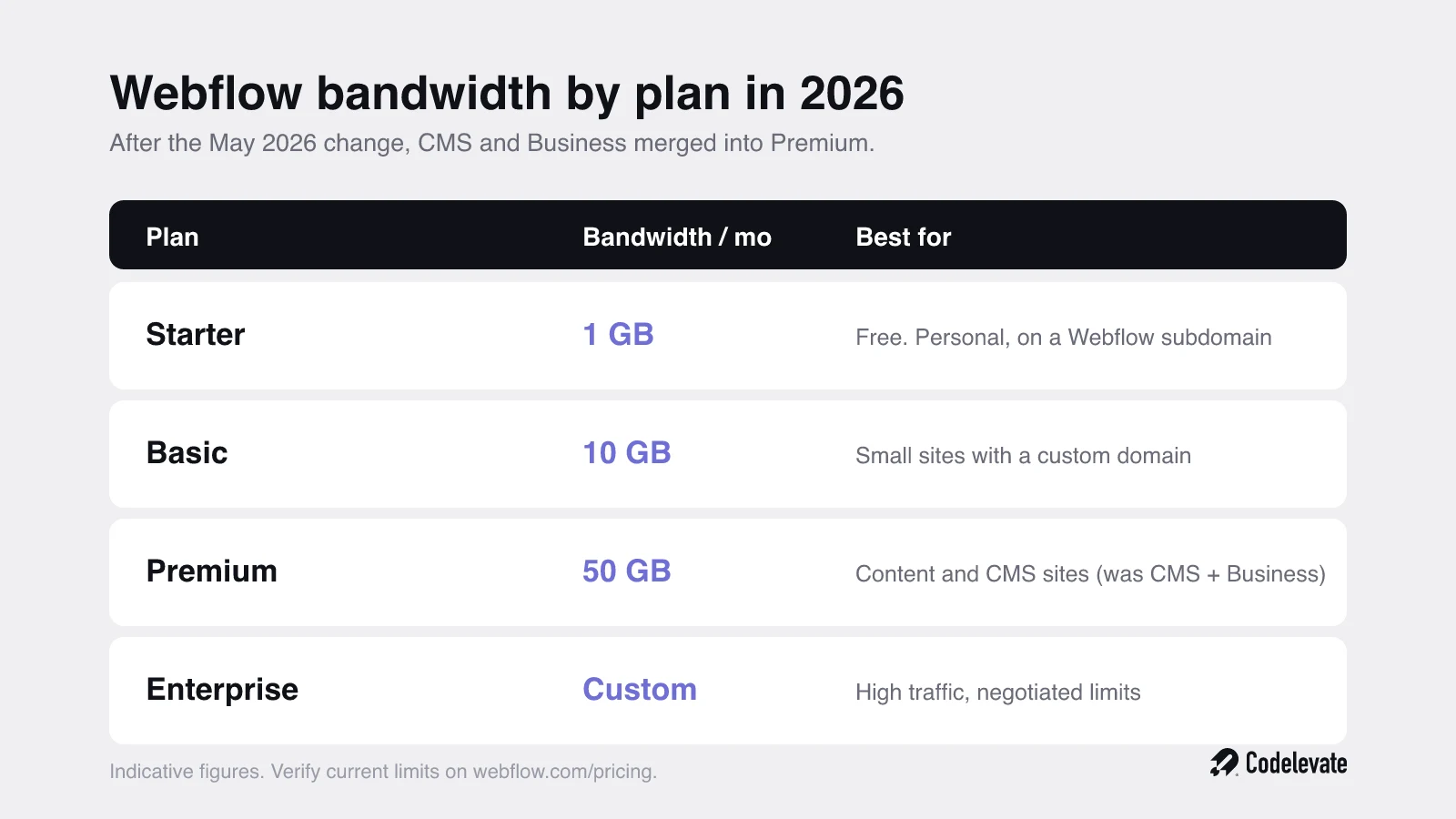
As a rough guide for 2026, the free Starter plan includes about 1 GB per month and keeps your site on a Webflow subdomain, Basic includes about 10 GB with a custom domain, and Premium includes about 50 GB along with the higher CMS limits that the old Business plan carried. Enterprise plans negotiate bandwidth to fit. Webflow adjusts these figures periodically, so treat them as a starting point and confirm the live numbers on Webflow's pricing page before you commit.
The thing to notice is how quickly a busy site can pass even the Premium allowance. Fifty gigabytes sounds like a lot until you remember the formula: at a 1 MB average page, that is 50,000 monthly views, which a modestly successful marketing site or a growing content blog reaches without much trouble. Bandwidth is not something only huge sites worry about.
If you are still setting a Webflow site up, our free Webflow launch checklist includes the image and performance steps that keep bandwidth low from day one, before it becomes a bill.
What actually counts toward your bandwidth
Knowing what consumes bandwidth tells you exactly where to look when the number climbs. In practice, a handful of things account for almost all of it, and they are the same on every site.
Images are usually the single biggest cost. A page full of high-resolution photos that were never compressed can weigh several megabytes on its own, and every view pays that price. Video is worse per view: a 20 MB background video watched 500 times is 10 GB from one element. Fonts, especially several custom weights loaded on every page, add up quietly. Scripts and stylesheets that are not minified carry extra bytes on every request. And files you host directly on Webflow, like PDFs, brochures, or media downloads, transfer their full size each time someone grabs them.
Then there is traffic you did not plan for. Bots and crawlers can consume as much as real visitors, sometimes far more during a scraping spike, and because they request the same heavy assets, they hit your bandwidth just as hard. This is why two identical months of human traffic can produce different bills: the bots changed.
What happens when you go over
Webflow does not cut your site off the moment you cross the line, but it does start charging. The system is built around a grace mechanism called surge protection, and understanding it stops the overage from becoming a shock.
The first month you exceed your bandwidth allowance, surge protection covers you and your site keeps running normally with no extra charge. It is a one-off cushion for a traffic spike, not a standing allowance. If you go over again the following month, Webflow treats it as your new normal and acts on it, either adding a paid bandwidth add-on or moving you up a plan so your allowance matches your usage.
Those bandwidth add-ons are where the cost can jump. Buying extra bandwidth on top of a plan is charged at a premium, and at the high end the add-ons for very heavy sites run into serious monthly money. That is the real risk of ignoring bandwidth: not a single overage, but a permanent step up in your monthly bill that quietly keeps growing as your traffic does.
How to reduce Webflow bandwidth
Almost all bandwidth reduction is page-weight reduction, and most of it is quick. Here are the tactics that move the number most, roughly in order of impact.
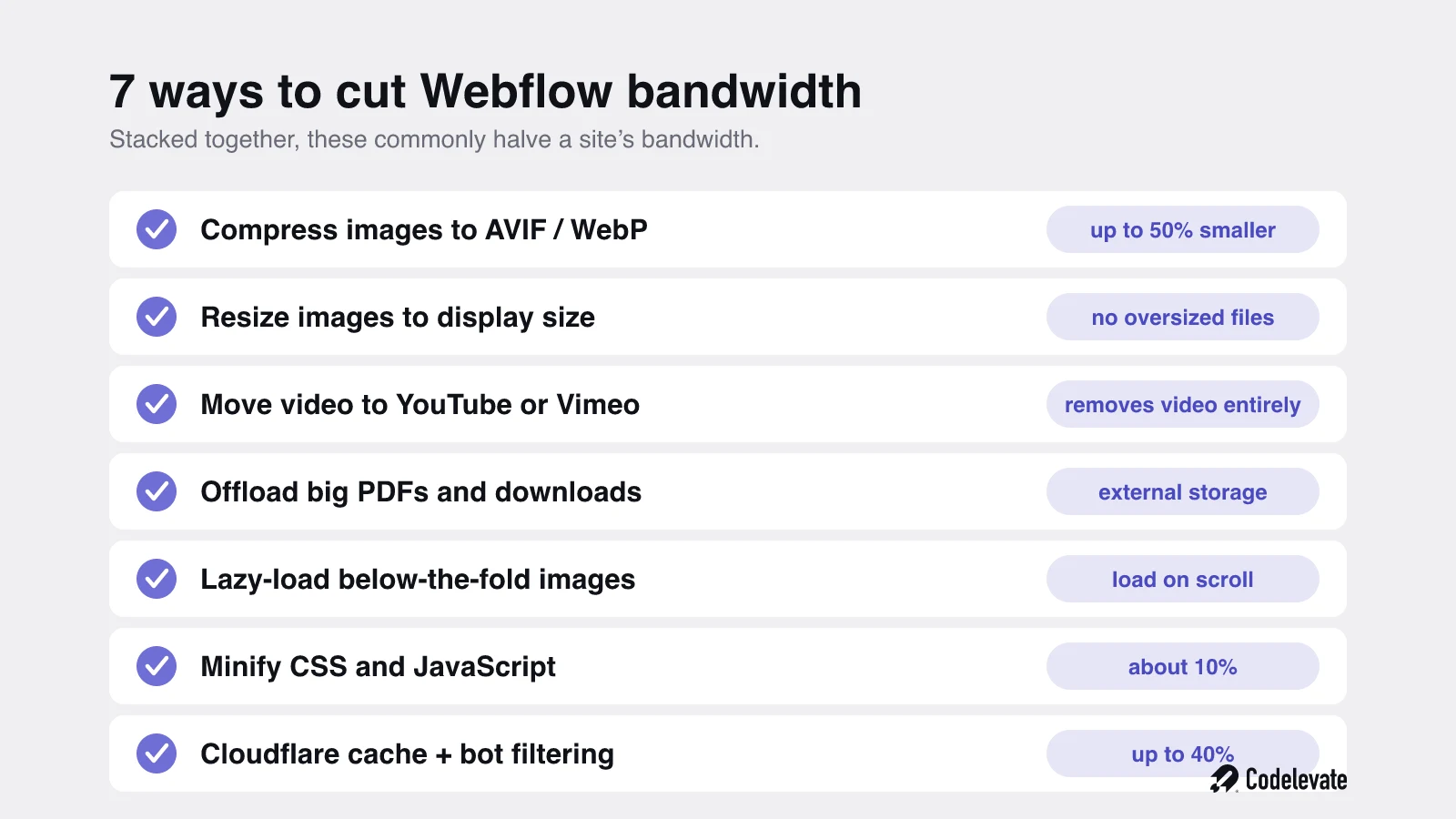
Start with images, because that is where the savings are largest. Convert photos to modern formats: AVIF cuts file size by 50% or more, and WebP by around 30%, usually with no visible quality loss. Resize every image to the largest size it is actually displayed at rather than uploading a 4000-pixel photo into a 600-pixel slot, and use SVG for logos and icons since they are tiny and scale perfectly. Turn on lazy loading so images below the fold only download when a visitor scrolls to them.
Next, get video off Webflow. Host it on YouTube, Vimeo, or a dedicated video service and embed it, which removes video from your bandwidth entirely and usually improves playback too. Do the same for large downloads: move PDFs, media kits, and big files to external storage and link out, so Webflow is not serving their full weight on every click.
Then tidy the rest. Minify your CSS and JavaScript to shave the whitespace, which typically saves around 10%, and remove unused scripts and assets. Finally, put your site behind a service like Cloudflare to cache assets and filter abusive bots. One organisation cut its monthly bandwidth by 40% through bot filtering alone, even while real traffic grew. Stacked together, these steps commonly cut a site's bandwidth by half or more.
When bandwidth means you have outgrown Webflow hosting
There is a point where optimising stops being the answer and the bandwidth bill is telling you something bigger. If you have already compressed images, offloaded video, and filtered bots, and you are still buying add-on after add-on, the economics have shifted. You are now paying a premium platform rate for raw data delivery, which is one of the cheapest things to buy almost anywhere else.
This is usually less about Webflow being wrong and more about your site having changed. A brochure site that grew into a high-traffic content engine, a marketing site that now serves heavy media at scale, or a product that has outgrown a visual site builder are all cases where the constraints that made Webflow a great choice no longer fit. The bandwidth bill is often the first hard signal that you have crossed that line.
When that happens, the move is not to fight the platform but to put the heavy parts where they belong: a proper content delivery network for assets, or a custom build with hosting you control. That is a bigger decision than image compression, and it is worth making deliberately rather than after another surprise invoice. If you are weighing it, our take on website development and where a builder stops fitting is a useful place to start.
How Codelevate helps
Because we build and run Webflow sites as well as custom platforms, we treat bandwidth as a design decision, not an afterthought. When we build in Webflow, pages are engineered to be light from the start: images sized and served in modern formats, video offloaded, code kept lean, and a CDN in front to absorb traffic and bots. The result is a site that stays comfortably inside its plan while loading fast, which is the same thing that helps it rank and convert.
The more valuable part is the judgment about where a site should live. As a Webflow devewlopment team that also ships production software, we can tell you honestly whether your bandwidth problem is a tuning job or a sign you have outgrown the platform, and we can move only the parts that need moving rather than rebuilding everything. That is the difference between shaving a bill and fixing the cause.
The promise is simple: a site that is fast, predictable to run, and hosted where it makes sense for its stage, instead of a monthly bandwidth bill that keeps climbing without a clear reason.
The bottom line
Webflow bandwidth is just the data your site sends to the world each month, and it follows one formula: page weight times traffic. Keep pages light, get video and big downloads off the platform, filter the bots, and check your usage against the current 2026 plan limits, and you will stay inside your allowance and avoid the surprise upgrade. When you have done all that and the add-ons still keep growing, treat it as the signal it is, that your site may have outgrown builder hosting, and make the move on your terms. Understand the formula and bandwidth stops being a mystery on your invoice and becomes something you control.

Free download: our Webflow launch checklist bakes the bandwidth-saving steps into your build from the start. And if your bandwidth bill is climbing and you want a straight answer on whether to optimise or move, you can book a free call with our team and we will look at your site with you, with no obligation.




.svg)
.svg)


