How to migrate a website without losing SEO rankings
How do you migrate a website without losing your SEO rankings? You keep every page that ranks reachable at a URL Google already trusts, or you send it there with a permanent 301 redirect, and you carry over the content and settings that earned the ranking in the first place. Rankings are tied to URLs and content, not to your platform. Most traffic drops after a migration happen because old URLs break, redirect to the wrong place, or lose the content that made them rank.
This guide walks you through the whole process step by step: what a website migration is, why sites lose SEO when they move, the seven steps to protect your rankings, what changes if you move from WordPress to Webflow, how long recovery takes, and the mistakes we see most often. It is written for founders, marketing leads and website owners who are about to rebuild, replatform or move their site and cannot afford to lose the traffic it already brings in.
What is a website migration?
A website migration is any major change to a website that affects how search engines find, crawl or understand it. That usually means a change to the URLs, the platform, the domain, the structure or the hosting. A simple design refresh that keeps every URL and every piece of content is not really a migration. A rebuild on a new CMS almost always is.
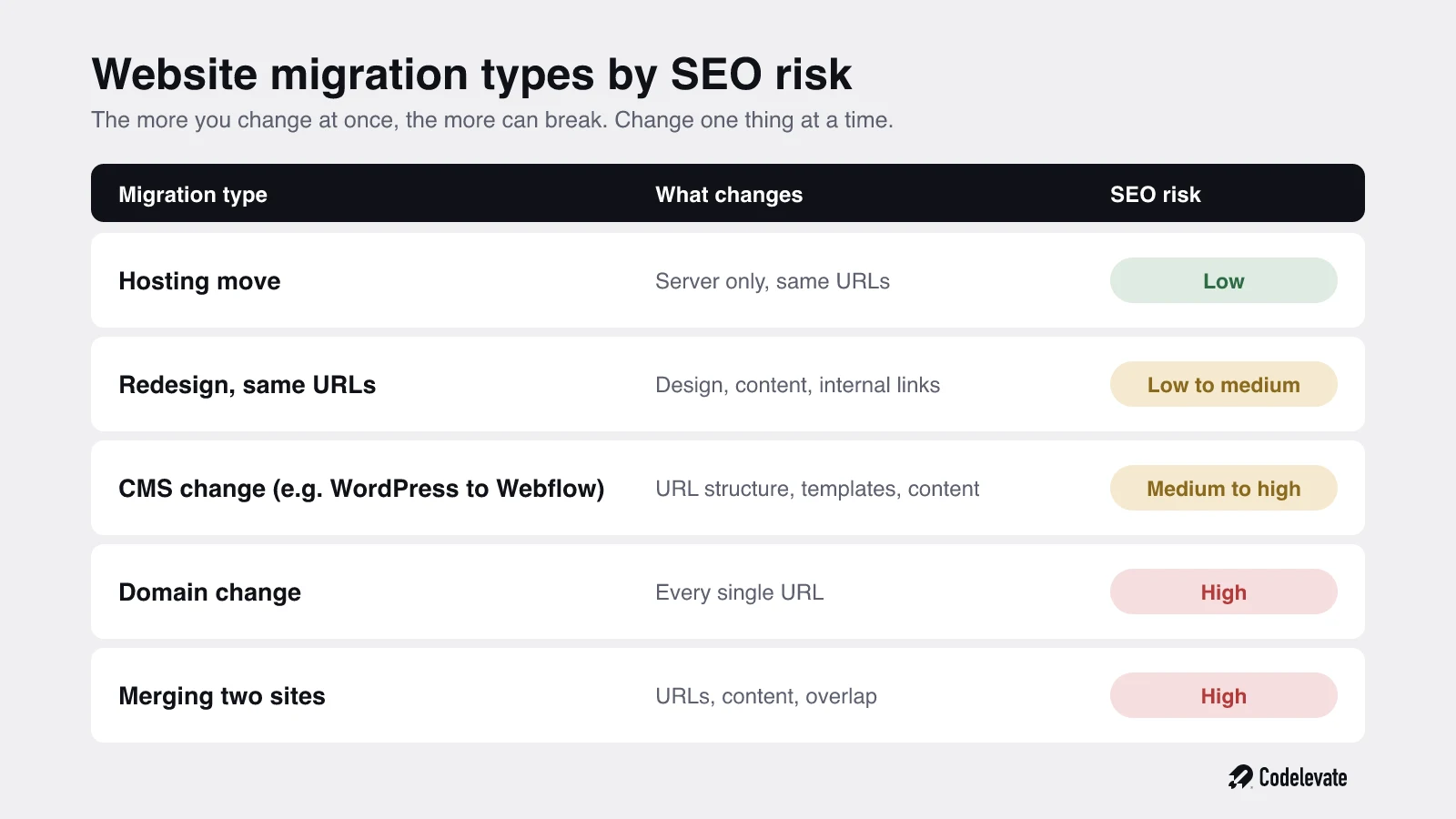
Not every migration carries the same risk. The more you change, the more can break.
• Hosting move: same site, same URLs, new server. Lowest risk, as long as nothing else changes.
• Redesign with the same URLs: new look, same addresses. Low to medium risk, mostly from content and internal links that change.
• CMS or platform change, such as WordPress to Webflow: URLs often change because each platform builds them differently. Medium to high risk.
• Domain change, such as a rebrand or moving from a .nl to a .com: every single URL changes. High risk.
• Merging sites: two sites become one, with overlapping pages. High risk.
Google's own advice is to change only one thing at a time if you can, for example move the domain first and change the layout later. In its guide to site moves, Google explains that this makes it much easier to see what caused a problem if traffic drops.
Why do you lose SEO in a website migration?
You lose SEO in a migration when Google cannot connect your old pages to your new ones, or when the new pages are weaker than the old ones. Google has spent years learning which of your URLs answer which searches. If those URLs disappear without a clear signal of where they went, that history is lost, and the new site has to earn its place again from scratch.
A common belief, and one we see in forum questions all the time, is that SEO is mainly about keywords, so copying the same keywords onto the new pages will be enough. It is not. The technical migration matters more than matching the copy. These are the things that actually cause the drop:
• Missing redirects. Old URLs return a 404 error, so every ranking, backlink and bookmark pointing to them stops working.
• Wrong redirects. Old pages are sent to the homepage or to an unrelated page. Google treats many of these as soft 404s and does not pass the ranking on.
• Redirect chains and loops. A redirects to B, which redirects to C. Each extra hop slows crawling and can break the chain entirely.
• Lost content. Copy gets shortened to fit a new design, sections that answered specific questions disappear, and the page no longer matches what people searched for.
• Lost SEO settings. Page titles, meta descriptions, headings, image alt text, canonical tags and structured data are not carried over.
• Broken internal links. Links inside the site still point to old URLs, so they now go through redirects or lead nowhere.
• A blocked new site. The noindex setting or robots.txt block used on the staging version is accidentally left on after launch.
• A slower site. The new design is heavier, so pages load slower and perform worse.
The good news is that a correct permanent redirect does not cost you ranking power. Google states plainly in its site move guide that 301 and other permanent redirects do not cause a loss in PageRank. A migration done properly does not have to hurt.
How to migrate a website without losing SEO: step by step
These seven steps cover everything from planning to the weeks after launch. Follow them in order. Most of the work happens before launch day, which is exactly why most failed migrations go wrong: the team treats launch as the starting point instead of the finish line.
Step 1: Record your current SEO performance
Before you change anything, write down where you stand. This baseline is the only way to know later whether the migration worked, and which pages to check first if traffic drops.
• Export the last 8 to 12 weeks from Google Search Console: clicks, impressions and average position per page and per search query.
• Export your top landing pages and conversions from Google Analytics.
• List the pages with the most backlinks. You can see these in Search Console under Links, or in a tool like Ahrefs or Semrush.
• Note your page speed scores for your most important templates.
Tip: mark your 20 to 50 most valuable pages, the ones that bring in most traffic or leads. These get the most attention in every step that follows.
Step 2: Crawl the old site and map every URL
Next, build a complete list of every URL on the current site. Do not rely only on your menu or your sitemap, because old pages, blog tags, PDFs and image files often still rank and receive links without being linked anywhere visible.
• Crawl the live site with a crawler such as Screaming Frog, which is free for up to 500 URLs.
• Add every URL from your Search Console performance export and your analytics, so you catch pages the crawler cannot reach.
• Add your XML sitemap and any URLs with backlinks.
• Remove duplicates and keep one clean list in a spreadsheet.
Tip: save this crawl. You will use it again after launch to test that every old URL redirects to the right place.
Step 3: Build a redirect plan
The redirect plan, also called a redirect map, is the most important document in the whole migration. It lists every old URL next to its new URL and what should happen to it. Get this right and most of the risk disappears.
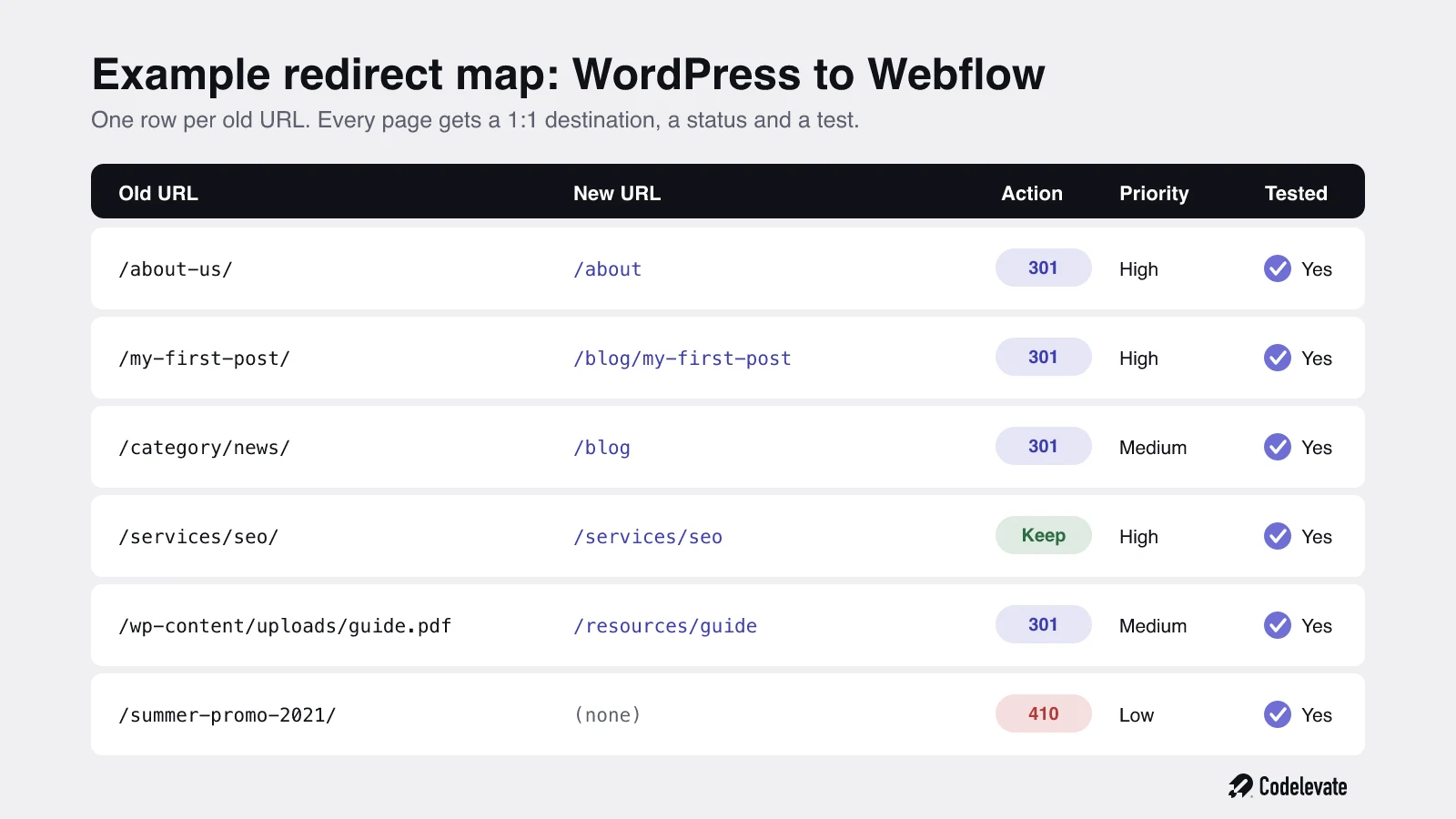
Follow these rules when you fill it in:
• Redirect one to one. Each old page goes to the single new page that best matches it, not to a category or the homepage.
• Use permanent redirects. Use a 301 (or 308) redirect, never a temporary 302, for pages that have moved for good. Google's guidance on redirects explains that permanent redirects show the new page in search results, while temporary redirects keep showing the old one.
• Avoid chains. Every old URL should point straight to its final destination in one hop. If you migrated before, update the old redirects so they skip the middle step.
• Let truly dead pages go. If a page has no equivalent and no value, let it return a 404 or 410 instead of forcing it onto an unrelated page.
• Mark priority. Your most valuable pages from Step 1 get tested first and most carefully.
Step 4: Carry over the content and SEO settings
A redirect only passes the ranking if the new page deserves it. If the new page is thinner than the old one, Google will rank it lower, redirect or not.
• Keep the content that ranks. Move the main text, headings, FAQs and examples of your top pages across, and only improve them, never cut them down to fit a design.
• Copy page titles and meta descriptions, at least for pages that already perform well.
• Keep the same heading structure, image alt text, canonical tags and structured data such as FAQ or article schema.
• Update internal links to point directly to the new URLs, not through redirects.
A simple way to decide what can change: anything a visitor sees as design can change freely. Anything Google reads, the URL, the text, the headings, the titles and the links, should change only on purpose.
Step 5: Prepare and test the new site before launch
Build the new site on a staging address and test it there, before a single visitor or search engine sees it.
• Keep the staging site out of Google with a noindex setting or password protection, so it does not get indexed as a duplicate.
• Crawl the staging site and compare it with your crawl from Step 2: missing pages, missing titles, broken links and duplicate content show up straight away.
• Test your redirect map on staging where your platform allows it.
• Check speed, mobile layout, forms and analytics tracking.
• Agree a rollback plan: who decides to roll back, and how quickly you can switch back if something serious breaks.
If you are building the new site in Webflow, our free Webflow launch checklist covers the SEO and launch checks we run on every project, step by step.
Step 6: Launch and switch on the redirects
Launch day is a checklist, not a moment to improvise. Plan it for a quiet period, never right before a campaign or your busiest week.
• Publish the new site and switch on all redirects at the same time.
• Remove the noindex setting and check robots.txt is not blocking anything important.
• Test your top pages straight away: each old URL should land on the right new page in one hop.
• Submit your new XML sitemap in Search Console. Google also recommends submitting the old sitemap, so its crawler revisits the old URLs and discovers the redirects faster.
• If you changed domain, use the Change of Address tool in Search Console. It is only for domain changes, not for moving to https.
One more point that contradicts some advice online: for small and medium sites, Google recommends moving all URLs at the same time rather than one section at a time. Only very large sites benefit from testing a section first.
Step 7: Monitor and fix issues in the weeks after launch
Some movement in rankings after a migration is normal. Google says to expect temporary fluctuation, and that for a medium-sized site it can take a few weeks or more before the new URLs fully replace the old ones in search results. Your job in this period is to spot real problems early.
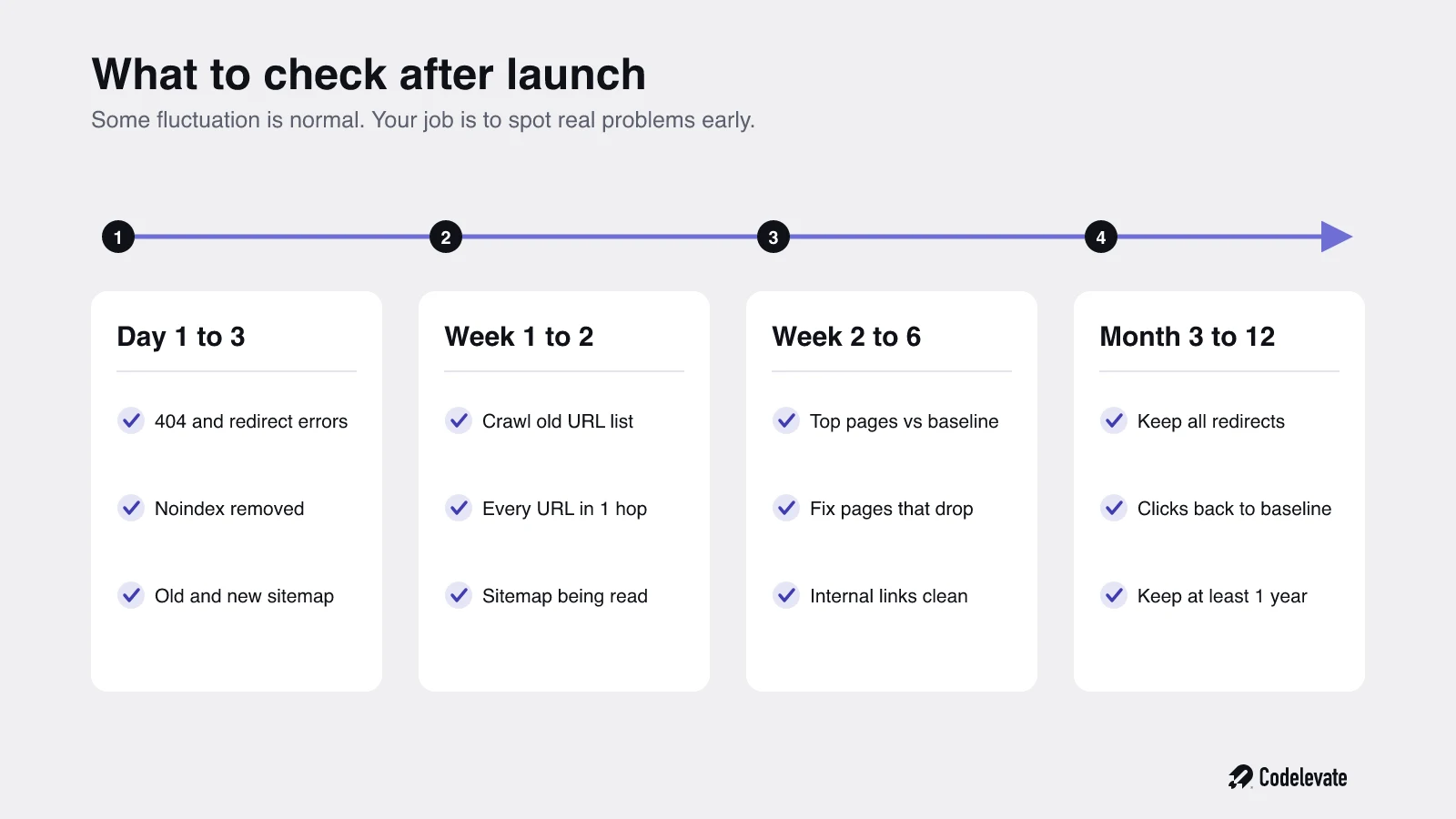
• Day 1 to 3: check the Pages report in Search Console for new 404 errors and redirect errors, and fix them the same day.
• Week 1 to 2: crawl your old URL list from Step 2 in list mode and confirm every one redirects correctly. Check that the new sitemap is being read.
• Week 2 to 6: compare clicks and positions of your top pages with your baseline. A small, short dip is normal. A page that loses most of its traffic needs a closer look.
• Month 3 to 12: keep the redirects in place. Google advises keeping them for at least a year, and ideally for good.
Extra tips: migrating from WordPress to Webflow
Moving from WordPress to Webflow is one of the most common migrations for growing companies, and it has its own traps because the two platforms build URLs differently. If this is your move, add these checks to the steps above.
• Map every WordPress URL pattern. Besides pages and posts, WordPress creates category, tag, author, date and media attachment URLs. Many of them have rankings or backlinks, so decide for each pattern whether it gets a new home or a 404.
• Watch the blog structure. WordPress posts often live at the root (/my-post), while Webflow CMS items live inside a collection folder (/blog/my-post). Every single post needs a redirect.
• Use Webflow's 301 redirect settings. You add them under the publishing settings of your site, and they require a paid site plan.
• Use wildcards for patterns. Webflow supports pattern redirects, so one rule can cover a whole folder. Webflow recommends staying under about 1,000 redirect rules as best practice, and wildcards help you get there.
• Mind the order. Webflow runs redirects in the order they were added, so add specific rules before broad wildcard rules.
• Be careful with CSV imports. You can import redirects from a spreadsheet, but a new import overwrites all existing redirects. Keep one master file and always import the full list.
• Add rules for every language. If you use Webflow Localization, localized paths such as /nl/old-page need their own redirect rules. Our guide to migrating from Weglot to Webflow Localization covers that part in detail.
Still deciding whether the move is worth it? Our comparison of Webflow vs WordPress explains where each platform fits.
How long does SEO recovery take after a migration?
For a well-planned migration that keeps the same domain, most sites settle within a few weeks. Google itself says it can take a few weeks or more for a medium-sized site, and longer for very large ones, because Googlebot has to visit every old and new URL at least once.
Domain changes take much longer. A Search Engine Journal study of 892 domain migrations found it took 523 days on average for the new domain to reach the organic traffic level of the old one, and 17% had still not recovered after 1,000 days. The fastest recovered in under a month. The difference between those groups is almost always the quality of the redirect work and how much else changed at the same time.
That is the strongest argument for the steps above: a careful migration on the same domain is a matter of weeks, while a rushed domain change can cost you a year or more of traffic.
How much does a website migration cost?
The cost depends mostly on the number of URLs, how much the structure changes and whether you change domain or platform at the same time. A 30-page site with the same URLs is a small job. A site with hundreds of blog posts, multiple languages and a new URL structure needs a proper redirect plan, content migration and testing, which takes far more time.
The cheapest migration is usually the one that changes the fewest things at once. If you want a quick estimate for a new Webflow site, our Webflow budget calculator gives you a range in a few clicks.
Common website migration mistakes to avoid
Almost every migration that loses traffic makes at least one of these mistakes.
• Redirecting everything to the homepage. It feels safe but Google treats it as a soft 404, so the ranking is lost anyway.
• Using 302 redirects for permanent moves. Google keeps showing the old URL and the new page does not take over.
• Leaving the staging noindex on. The new site tells Google not to index it, and traffic falls off a cliff within days.
• Changing everything at once. A new domain, new platform, new URLs and new content in one launch make it impossible to know what caused a drop.
• Cutting content to fit the design. Pages that answered a question well lose the text that made them rank.
• Forgetting non-page URLs. PDFs, images, tag pages and old campaign pages often carry backlinks and get no redirect.
• Removing redirects too early. Old links and bookmarks keep working only as long as the redirects exist. Keep them at least a year.
• Launching without a baseline. Without the numbers from Step 1, you cannot tell a normal dip from a real problem.
Conclusion: migrate the URLs, not just the design
A website migration does not have to cost you your rankings. Google does not punish a site for moving. It loses track of pages when the move is not mapped. Record your baseline, crawl every URL, build a one-to-one redirect plan, carry over the content and SEO settings that earned your rankings, test on staging, launch with a checklist and watch Search Console closely in the weeks after. Do that, and most sites are back at their old level within weeks, with a faster, better website to grow from.
Free download: our Webflow launch checklist takes you through the SEO and launch steps for your new site. Planning a move to Webflow and want it done without losing traffic? Our Webflow development team handles the full migration, from the redirect plan to post-launch monitoring.
Book a call with Nicko and we will look at your current site together.